

Bookings
Manage all your bookings in one place with powerful filtering, approval workflows, and comprehensive management tools.Viewing Bookings
Your bookings are organized by status and can be filtered by:- Upcoming: Future bookings that are confirmed
- Pending: Bookings awaiting your approval
- Past: Completed bookings for reference
- Cancelled: Cancelled bookings with reasons
- All: Complete booking history
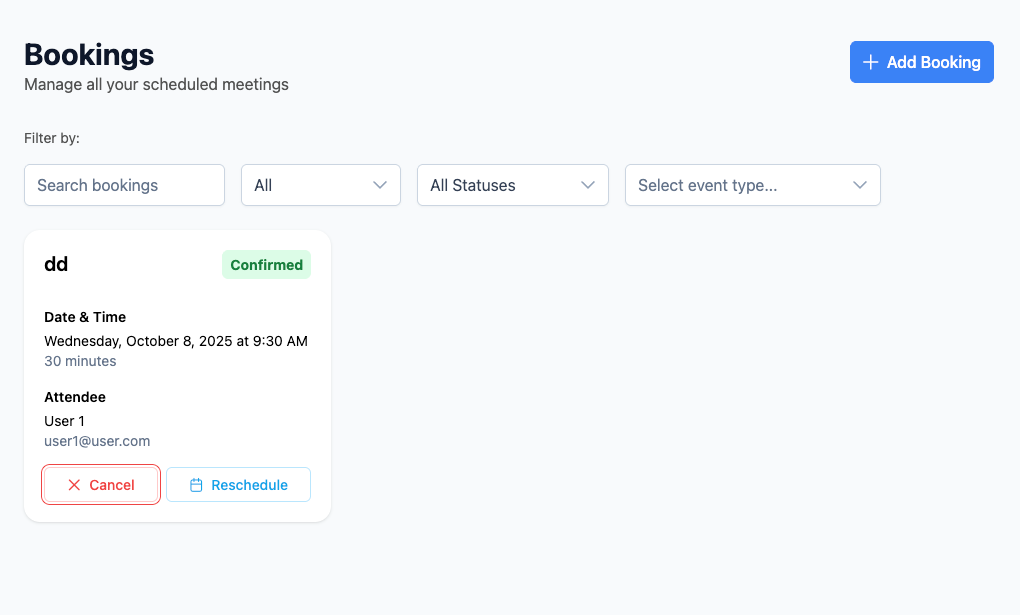
Booking Statuses
Understanding different booking statuses helps you manage your schedule effectively:Pending Bookings
Bookings that require your approval before confirmation. Features:- Require manual approval
- Show approval requirements
- Allow decline with reason
- Can be rescheduled before approval
- Approve booking
- Decline with reason
- Reschedule to different time
- Add notes or requirements
Confirmed Bookings
Approved bookings that are scheduled and confirmed. Features:- Automatically confirmed
- Send confirmation emails
- Add to calendars
- Generate meeting links
- Reschedule to new time
- Cancel with reason
- Add meeting notes
- Send reminders
Cancelled Bookings
Bookings that have been cancelled by you or the attendee. Features:- Show cancellation reason
- Free up time slots
- Maintain booking history
- Can be reactivated
Booking Management
Approval Workflow
For events that require approval, manage the approval process: Review Process:- Check Details: Review attendee information and notes
- Verify Availability: Ensure time slot is still available
- Make Decision: Approve or decline the booking
- Add Notes: Include any special instructions
- Approve: Confirm the booking and send confirmation
- Decline: Reject with reason and free up the time slot
- Request Changes: Ask for different time or details
- Add Requirements: Specify preparation or materials needed
Rescheduling Bookings
When you need to change a booking time: Reschedule Process:- Select New Time: Choose from available slots
- Add Reason: Explain why rescheduling is necessary
- Notify Attendee: Automatic email with new details
- Update Calendar: Both calendars are updated
- Send Reminders: New confirmation and reminders sent
- Same Day: Move to different time same day
- Different Day: Select from available dates
- Bulk Reschedule: Move multiple bookings together
- Automatic Suggestions: System suggests alternative times
Cancelling Bookings
To cancel a booking with proper communication: Cancellation Process:- Select Booking: Choose the booking to cancel
- Add Reason: Provide clear cancellation reason
- Notify Attendee: Automatic cancellation email
- Update Availability: Time slot becomes available
- Process Refund: If applicable, handle payment refunds
- Attendee Cancellation: Customer-initiated cancellation
- Host Cancellation: You need to cancel
- Emergency Cancellation: Last-minute changes
- Bulk Cancellation: Cancel multiple bookings
Advanced Booking Features
Manual Booking Creation
Create bookings directly for customers: Manual Booking Process:- Select Event: Choose the event type
- Pick Date/Time: Select available slot
- Add Attendee: Enter customer information
- Set Status: Confirm immediately or leave pending
- Send Notifications: Automatic confirmations sent
- Phone bookings
- Walk-in appointments
- Rescheduled meetings
- Special arrangements
Booking Modifications
Make changes to existing bookings: Modification Options:- Time Changes: Reschedule to different time
Booking Details
Each booking includes comprehensive information:Attendee Information
- Contact Details: Name, email, phone number
- Timezone: Customer’s local timezone
- Communication Preferences: Preferred contact method
- Special Requirements: Accessibility or other needs
Event Information
- Event Type: Which service or meeting type
- Duration: Length of the booking
- Location: Physical or virtual meeting details
- Team Member: Assigned host or team member
Scheduling Details
- Date and Time: Scheduled appointment time
- Timezone: Local time for the booking
- Buffer Time: Time before and after the event
- Recurring: If part of a recurring series
Notifications and Communication
Automatic Notifications
Confirmation Emails:- Booking confirmations sent automatically
- Include all meeting details
- Calendar invitations attached
No-Show Handling
Managing No-Shows
No-Show Process:- Mark as No-Show: Update booking status
- Record Reason: Note why they didn’t attend
- Free Up Time: Make slot available for others
- Follow-Up: Send appropriate follow-up message
- Pattern Recognition: Identify frequent no-shows
- Customer Notes: Add to customer profile
- Policy Enforcement: Apply no-show policies
- Revenue Impact: Track lost revenue
Follow-Up Actions
Automatic Follow-Up:- Send rescheduling options
- Offer alternative times
- Provide cancellation policy
- Request feedback
- Personal phone calls
- Custom email messages
- Special offers
- Relationship management
Notification System
- Real-time Alerts: Instant booking notifications
- SMS Notifications: Text message alerts
- Push Notifications: Mobile app notifications